ByeCut
How to add captions to your videos automatically
Most short-form video is watched on mute. Here's how to add auto-generated, word-by-word captions on iPhone, and how to style them so people actually read them.
By the ByeCut team · Updated · 5 min read
Captions are no longer an accessibility afterthought. They're a core part of short-form video. Many people scroll with the sound off, and captions help anyone follow along in a noisy place. They also make your video accessible to deaf and hard-of-hearing viewers.
Burned-in captions vs. platform subtitles
Burned-in (open) captions are part of the video image: they look the same everywhere and can be styled. Platform subtitles (closed captions, often an SRT file) can be switched on and off by the viewer. For TikTok and Reels, burned-in captions are the norm. For YouTube, many creators do both.
Adding captions automatically on iPhone
- Open your project in ByeCut and tap Captions.
- ByeCut transcribes your speech on-device with word-level timing.
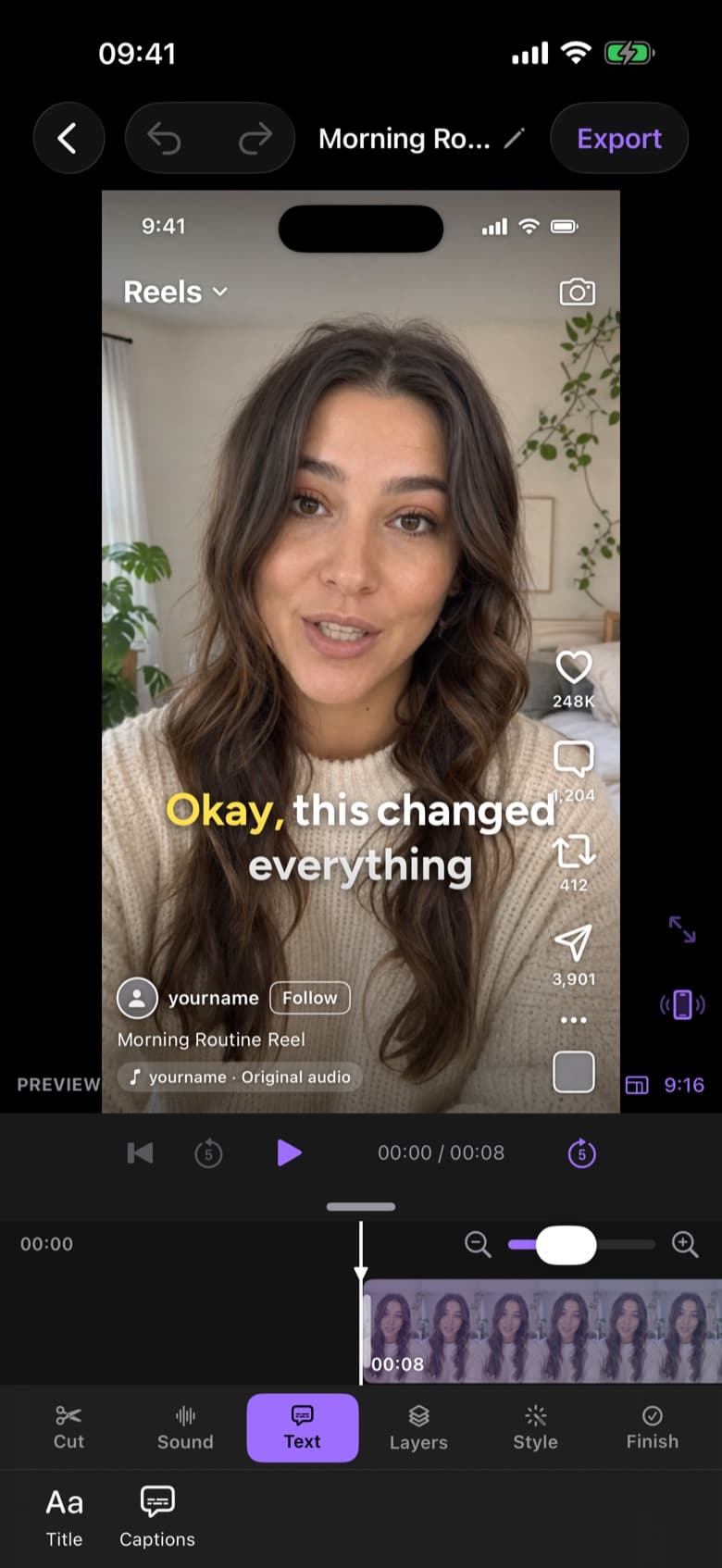
- Pick a caption style: Classic, Trending, White Box, Poster and more.
- Tap any caption to correct a word; timing stays locked.
- Export the video, and optionally an SRT file.
Caption style tips that improve readability
- Keep lines short: two to four words at a time reads faster on mobile.
- Highlight the active word so the eye knows where to look.
- Use high contrast: white text with a stroke or box on busy backgrounds.
- Stay inside the safe area: platforms cover the bottom and right edges with buttons and captions.
- Stay consistent: one caption style per series builds recognition.
Safe areas for TikTok, Reels and Shorts
Each platform overlays its own interface on your video. As a rule of thumb, keep captions in the middle band of a 9:16 frame, away from the bottom 20% and the right-hand edge. ByeCut's safe-area guides and live Reels preview show exactly where the interface sits.