ByeCut
How to edit videos with AI on your iPhone
What AI video editing actually does well, where you still need a human touch, and a step-by-step workflow from raw footage to a posted Reel.
By the ByeCut team · Updated · 7 min read
AI video editing has moved from gimmick to genuinely useful, especially for one kind of video: someone talking to a camera. If you make TikToks, Reels, YouTube Shorts, UGC ads or course lessons, most of your editing time goes into the same repetitive job: finding the good takes and cutting everything else. That's exactly the part AI is now good at.
What AI video editing is good at (and what it isn't)
Modern AI editors combine speech transcription with audio analysis. That makes them excellent at decisions that depend on what you said and how you said it:
- Removing silences, long pauses and dead air
- Cutting filler words such as “um” and “uh”, false starts and restarts
- Choosing the strongest of several takes of the same line
- Generating captions timed to every word
What AI is still weaker at is taste: which B-roll fits the story, when to hold a pause for comedic effect, or how your brand's visual style should feel. The best workflow lets AI do the first pass and leaves the final polish to you, on a real timeline.
Step 1: Film for the edit
AI editing changes how you should film. Instead of trying to nail every line in one take, keep the camera rolling and simply repeat any line you're not happy with. Pausing for a second before a retake helps the AI see where one attempt ends and the next begins.
Step 2: Import your footage and (optionally) your script
In ByeCut, tap + and start an AI Edit, then import your clips from Photos or Files. If you had a script, paste it in. The AI uses it to match each line of the script to the takes where you said it, which makes the result more precise, especially for UGC scripts where every line must appear.
Step 3: Let the AI build the rough cut
The AI transcribes your audio, plans the order of the story, then listens to the competing takes of each line. Good tools don't just keep the last take. They compare delivery. It then removes silences and filler words and assembles the cut.
Step 4: Review before you accept
Always review the AI's cut before applying it. In ByeCut you can compare RAW against CUT, then apply the result to the timeline. From there, every cut is an ordinary edit point you can move, extend or undo.
Step 5: Add captions and polish
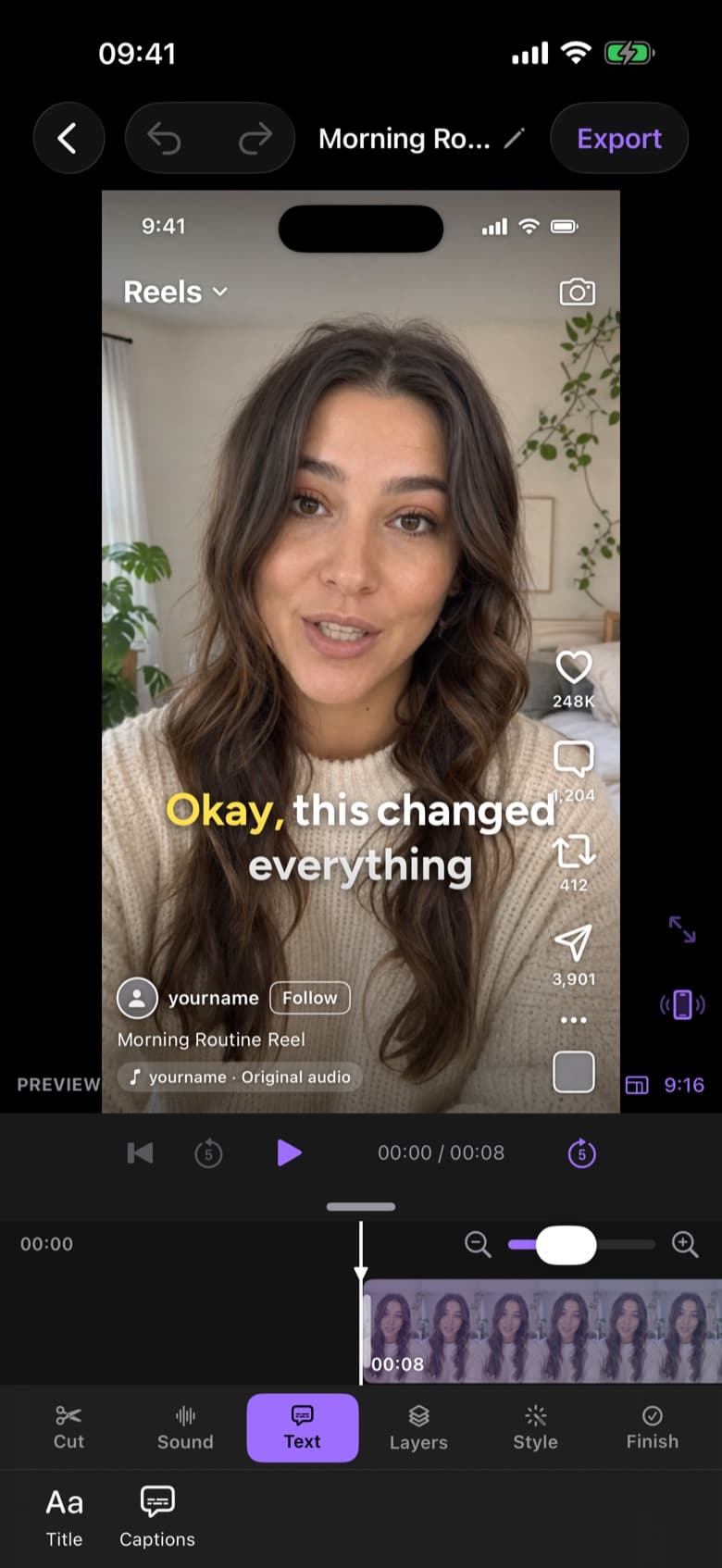
Most short-form video is watched without sound, so captions aren't optional. Generate word-by-word captions, pick a style, and correct any names or slang. Then add the finishing touches: background music, a punch-in zoom on key moments, B-roll or photo overlays, and a quick colour adjustment.
Step 6: Export for each platform
| Platform | Aspect ratio | Recommended export |
|---|---|---|
| TikTok | 9:16 | 1080 × 1920, 30–60 fps |
| Instagram Reels | 9:16 | 1080 × 1920, 30 fps |
| YouTube Shorts | 9:16 | 1080 × 1920 or 4K, 30–60 fps |
| Instagram feed | 4:5 | 1080 × 1350 |
Exporting in 4K gives each platform the most to work with; they will compress it anyway. Use the safe-area guides while editing so captions don't end up hidden behind the platform's buttons.
How much time does AI editing save?
It depends on how messy your raw footage is. The more retakes and pauses you record, the more the first-pass cut saves, and that first pass is typically the slowest, least creative part of editing. You still spend a few minutes on polish, but you start from a clean cut instead of a raw file.
FAQ
Is there a free AI video editor for iPhone?
ByeCut's full manual editor, captions and 4K exports are free with no watermark, and your first AI edit is free on a recording of up to 15 minutes.
Does AI video editing work for vlogs and B-roll-heavy videos?
AI editing works best on speech-driven footage, where decisions depend on what was said. For B-roll-heavy videos, use AI for the talking parts and arrange the B-roll yourself.